macOS - Apple Silicon
Downloading RPCleaner
Your download should start automatically. Follow the steps below to get set up.
Preparing download...
Get started in 4 steps
Since RPCleaner comes from our site (not the App Store), macOS needs a quick one-time approval.
1
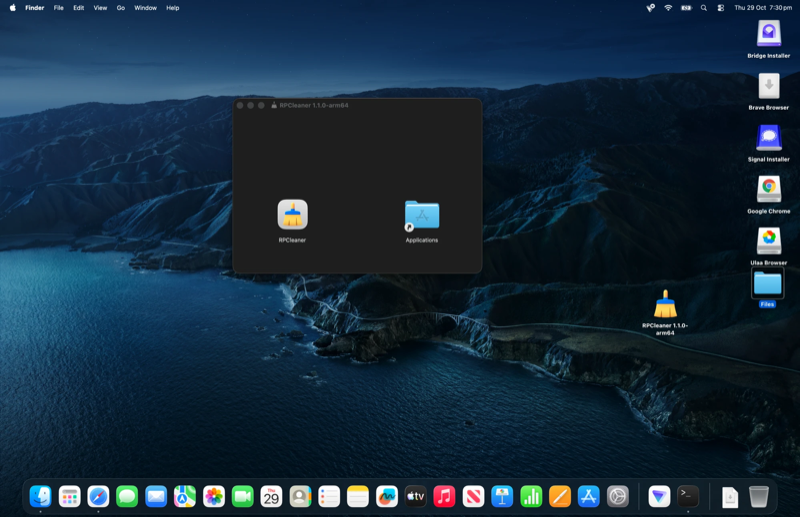
Open the .dmg file
Double-click the downloaded file to mount it. Drag RPCleaner into the Applications folder, then launch it.
2
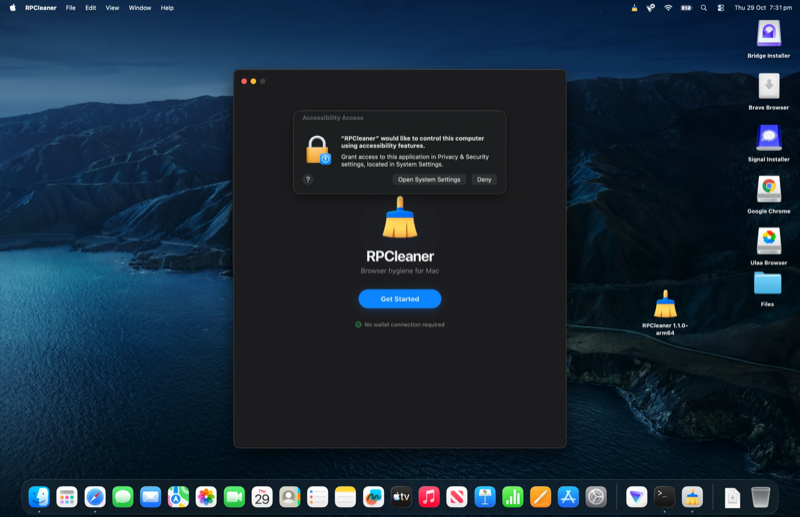
Click "Open System Settings"
RPCleaner needs Accessibility permission to protect your wallets. Click Open System Settings to continue.
3
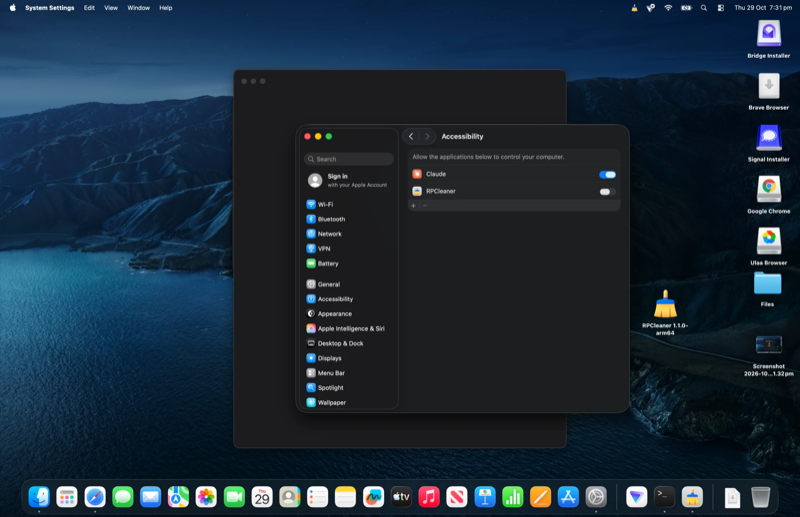
Toggle RPCleaner on
Find RPCleaner in the list and flip the toggle. You may need to enter your password or use Touch ID to confirm.
4
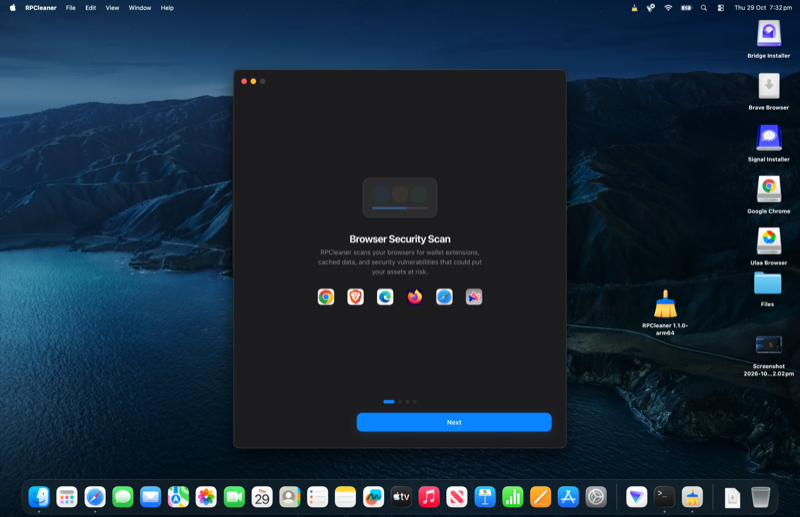
You're protected
RPCleaner is now active. It will scan your browsers for wallet extensions and guard your RPC connections in real time.
On an older macOS? You may see a Gatekeeper warning
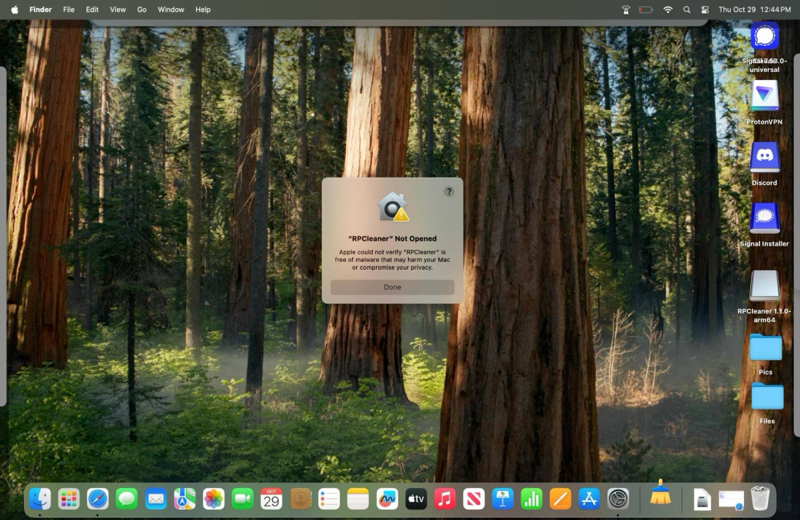
Click "Done", then open System Settings
macOS may block RPCleaner the first time. Click Done, then go to System Settings > Privacy & Security.
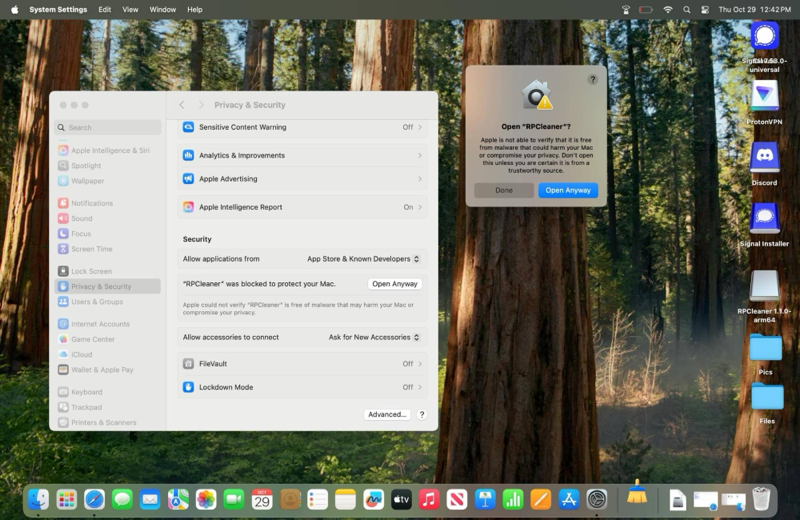
Click "Open Anyway"
Scroll down to the Security section. You will see "RPCleaner" was blocked. Click Open Anyway and confirm.
Why does macOS do this? Apps downloaded from the internet (outside the App Store) need your manual approval the first time. This is a standard macOS security feature called Gatekeeper. You only need to do this once -- after that, RPCleaner opens normally like any other app.